
How are PDF files handled in TTN TMS?
PDFs are treated as a special case. Although text can be translated directly by Trados, in most cases it is preferable to convert PDFs into Word. TTN TMS distinguishes between scanned PDFs and digital PDFs. Digital PDFs are generated from digital sources (for example, Word, InDesign or CAT tools); their text is already selectable and editable, so no OCR is needed. TTN TMS converts all PDF files automatically into Word files using Abbyy FineReader.
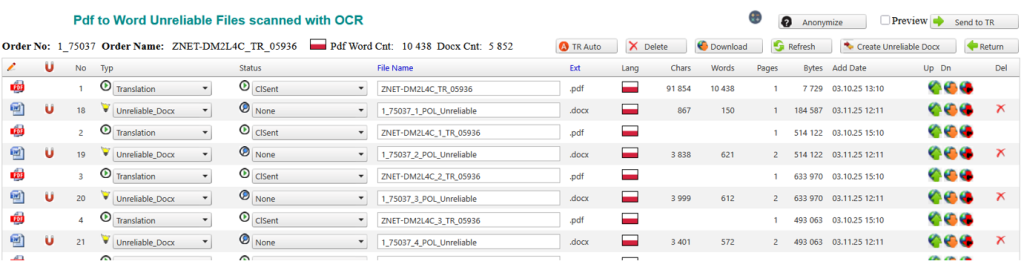
Figure 1: Automatic conversion of PDF files into Word
Scanned files are proposed as “unreliable Docx” files because OCR can introduce errors—for example, the figure “0” may be misinterpreted as the letter “O”, and pictures or logos can be interpreted as words—so the translator must compare the final translation with the original PDF and cannot rely solely on the converted Word file. Digital PDFs are proposed as “Binding PDF”; during conversion, the layout can be deformed, and the translator or the Translation Manager must check the layout before the file is sent to the client.
How does TTN-TMS handle top-secret PDF documents?
Top-secret or highly sensitive documents – such as scanned medical reports with handwritten notes, government files with stamps and seals, or any PDF that cannot be safely machine-processed – are handled within TTN’s closed system. The translator works directly on TTN’s secure server via a web interface or remote desktop, so they never download or keep a local copy of the file. TTN-TMS offers three secure solutions to accommodate different types of documents and translator needs:
Web Translation Editor (Simple Mode)
This is a lightweight online editor (built with Telerik UI components) ideal for small documents or short texts. The translator accesses a web page with two adjustable panes: one pane displays the original PDF and the other provides an input area for the translation. The interface is designed to be extremely easy to use, even for a translator who has never seen it before.
There is no complicated setup required – translators can start translating immediately in their browser, even on a tablet or large smartphone. The editor provides essential features like spell-checking in over 160 languages, but it blocks any attempt to download or print the source text. Printing is only possible by taking screenshots (which cannot be entirely prevented), and standard print and save functions are disabled.
This simple editor is perfect for very short texts. In fact, even a two-word document can be translated and submitted in under a minute using this tool. It offers a high level of security with minimal effort, allowing translators to complete micro-tasks with just a few clicks in a fully sandboxed environment.
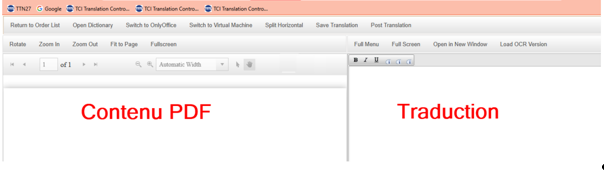
Figure 2: Translator’s web editor with two resizable windows
OnlyOffice Online Editor (Advanced Mode)
For source documents that are longer or have complex formatting (for example, scanned forms, tables, or official templates that need to be preserved), TTN-TMS integrates an OnlyOffice document editor. OnlyOffice is an open-source office suite similar to Microsoft Word, but it runs in the browser and is hosted on TTN’s own servers behind our firewall. Translators can switch to this editor when the simple mode isn’t sufficient to reproduce the layout neatly.
The OnlyOffice interface is very familiar (its menus and tools mirror those of MS Word), which means new users can find their way quickly. It supports all languages, including right-to-left scripts, and offers spell checkers for all the major languages our clients require. The advantage of this system is that it provides full editing capabilities – the translator can edit text in a Word-like environment – without ever downloading the file.
TTN has integrated OnlyOffice in a way that every user action is controlled. Features that could pose a security risk (such as printing, downloading, or copying large portions of text) are disabled or restricted. OnlyOffice even allows custom plugins, and TTN uses these to automate formatting tasks specific to client needs – for example, automatically inserting headers or adjusting font sizes so that each page of the translation aligns exactly with the corresponding page of the source document. The editor can also be used in a vertical split-screen mode, as illustrated in the figure below.
This advanced online editor gives translators more tools to handle tricky layouts, while still keeping the document within TTN’s secure environment.
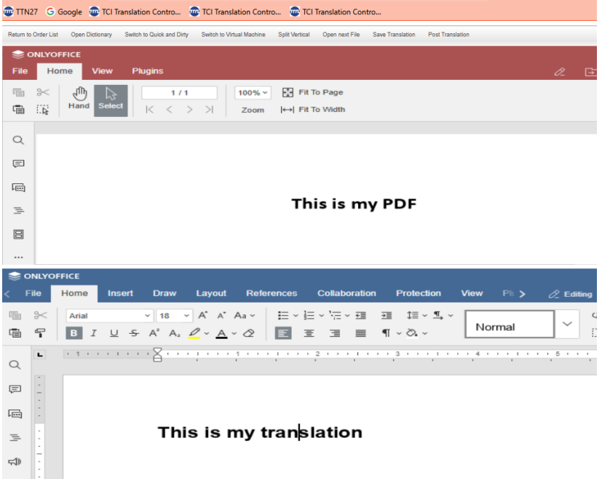
Figure 3: OnlyOffice Document Server integrated within TTN’s infrastructure
Dedicated Virtual Machine (VM) Environment
For large projects or for translators who work regularly on sensitive texts, TTN can provide a personal virtual machine on our server farm. This is essentially a fully isolated Windows desktop that the translator connects to via Remote Desktop (RDP). Each such VM has a fixed IP address and comes pre-configured with everything the translator needs: the system language is set to the translator’s preference, Microsoft Word is installed with the appropriate spell-check dictionaries, and the translator’s secure access to TTN’s job portal is already set up.
The translator simply downloads a small RDP configuration file from TTN and double-clicks it to launch the secure remote desktop. This one-click access avoids any complicated setup – even someone who is not IT-savvy can connect easily without worrying about technical details. On the VM, translators have the freedom to use more advanced tools or their familiar Word macros if needed, but all files stay on the server. They can only see the files related to their assignment, and they work on those files within the remote session.
The clipboard (copy-paste) is isolated to prevent any text from being copied from inside the VM to a local computer. Likewise, the “Save As” function is disabled, meaning the translator cannot save a local copy of the document outside the secure network drive provided. If any file needs to be opened or accessed, it goes through TTN’s secure file server rather than through a direct download. Each translator’s VM is password-protected and accessible only to that individual. Once a translation job is completed and delivered back to TTN through the platform, the system immediately revokes the translator’s access to those files – they can no longer open them.
For frequent collaborators, having a dedicated VM means they can configure the environment to their liking (for example, setting up custom software or bookmarks) while still adhering to the highest security standards. TTN’s server infrastructure is very robust – we have powerful servers that can host hundreds of such VMs simultaneously, ensuring performance is not an issue. This solution is the most advanced and is typically used for larger assignments or ongoing projects where a translator may need a full desktop environment to work efficiently. It provides maximum security and functionality, equivalent to the translator working in-house on a secure computer.
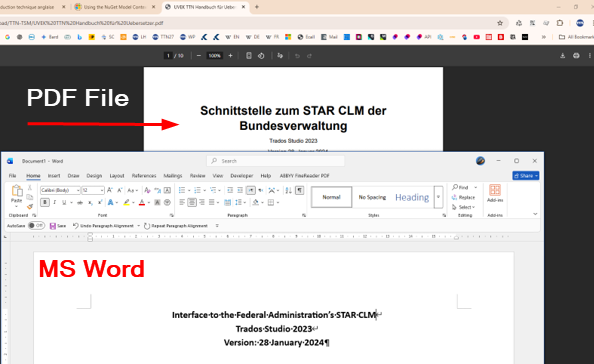
Figure 4: The virtual machine works like a home computer
In summary, all three methods ensure that the translator works within TTN’s secure ecosystem. Translators can choose the method that best fits the task (and their technical comfort level) – and they can even switch between methods if needed. The key point is that at no time is the confidential document uncontrolled: it remains either on the server or within a secure remote session at all times. This multi-pronged approach allows TTN to handle everything from a two-line certificate to a 100-page report with tables, providing the appropriate balance of security and usability for each scenario.
Can translators copy, download, or print the documents?
No. TTN-TMS is designed to prevent data from being siphoned out by unauthorized means. In the web-based editors (both the simple web editor and the OnlyOffice editor), typical file options are locked down. Translators cannot download the source file or the translation – there is no “Save as” function to save files to a local disk. The print function is also disabled in the interface (the only way to get a hard copy would be to take manual screenshots, which cannot be entirely prevented, but printing an entire document is not easily possible).
To further protect content, the system restricts how much text can be copied to the clipboard at once. A small script prevents selecting and copying large blocks of text from the web editor – only a short snippet (for example, a sentence or two, up to a certain character limit) can be copied at a time. This makes it impractical for anyone to copy the entire document’s text and paste it outside the secure platform.
On the virtual machine solution, TTN takes a different approach to achieve the same goal. The VM runs on TTN’s servers, and when a translator is connected to it via RDP, the clipboard is redirected or blocked to ensure that no content can be copied from the remote session to a local computer. In essence, a translator can copy-paste text within the remote desktop (for example, between the source PDF and Word on the VM), but not out to their own PC. File transfer channels are closed as well – one cannot simply drag a file out of the VM or use shared drives, unless explicitly enabled for a specific need. Additionally, even within the VM, the option to “Save As” or create new copies of the file outside the designated secure folder is disabled.
Through these combined measures, TTN ensures that all sensitive data stays within the confines of our system. Even if a translator tried to bypass the rules, the platform’s safeguards (and continuous monitoring of user actions) would limit any such attempt. This gives clients peace of mind that their documents won’t be printed on a stray printer or saved on a USB stick – the information remains contained and secure.
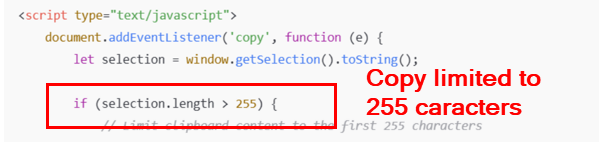
Figure 5: A script limits copy-and-paste operations to a defined number of characters
Where are the documents stored and who can access them?
All documents are stored on TTN’s secure servers, which are typically located on-premises under TTN’s direct control. TTN does not use public cloud storage for confidential projects – the files never leave our infrastructure. During the translation process, the document is either displayed through our web interface or opened in a remote virtual machine, but in all cases the master file stays on the server. Only authorized personnel and the assigned translator have access to the content, and even then the access is tightly regulated (for example, a translator can only view the files for the specific job they are working on, and only for the duration of that job).
Our system also complies with strict data protection regulations. TTN’s integration of OnlyOffice, for instance, is done in a GDPR-compliant way: the OnlyOffice document server is hosted on-premises behind our firewall, so no data is handed off to any third-party cloud service. OnlyOffice is an open-source platform, which means its code is transparent and has been vetted by the community – there are no hidden backdoors, and we can customize it for maximum security. All communications between the translator’s browser (or remote desktop client) and our servers are encrypted using industry-standard protocols. In fact, OnlyOffice itself employs AES-256 encryption for data at rest and TLS/HTTPS for data in transit, ensuring that even if someone intercepted the network traffic, they could not decipher the content. TTN’s servers are kept up-to-date and hardened following cybersecurity best practices, and we were early adopters of dedicated internet infrastructure to ensure we have full control over network security.
In practical terms, this means the document’s journey is fully contained within TTN’s infrastructure. From the moment the client uploads it to our platform for translation, it resides in a secure database; the translator accesses it through a secure session to translate it; and the finished translation is stored and delivered back to the client through the same protected system. No copies ever reside on a translator’s personal device, and no unencrypted emails with attachments are sent during the process. TTN-TMS also limits internal access – even within TTN, only staff who need to handle the project (for example, a project manager or a proofreader) can see the files, and even that access is via the secure platform. By keeping storage and processing in-house and encrypted, TTN ensures that all sensitive documents remain confidential and protected from unauthorized access at all times.
Is this platform easy for translators to use?
Yes – despite the high security measures, we have designed the system to be user-friendly for translators. TTN understands that if a system is too complicated or slows down the translator, it could introduce errors or discourage the best linguists from working on a project. TTN’s platform avoids that by offering solutions tailored to the task size and to the translator’s technical comfort level.
For very small jobs, the web translation editor interface is extremely straightforward. A translator who has never used TTN’s system before can receive a link and start typing the translation immediately. There is no software to install and virtually no learning curve – the web editor is accessible to users familiar with standard word processors.
This ease of use is crucial, for example, when a document is only a couple of sentences long and might not even meet a typical minimum fee. In such cases, translators appreciate being able to complete the work in seconds and move on. The inclusion of features like spell-check and basic text formatting in the web editor helps them work without needing any external tools.
For more complex tasks, the OnlyOffice mode provides a full-featured word processor in the browser. Its interface is modeled on MS Word, so translators feel at home – the menus and buttons are where they expect them to be. It supports even advanced needs (like tables, text boxes, etc.), allowing translators to edit in a true WYSIWYG (What You See Is What You Get) manner without struggling with workarounds. We have also ensured that the interface language can be changed, so a translator who is more comfortable in French, German, or another language can switch the UI language. These details make the experience smoother and lower the barrier for translators who might be wary of online tools.
For translators handling large volumes regularly, the dedicated VM approach offers even more flexibility than a locked-down company laptop. They get a personal virtual machine where they can install custom spell-checking tools or set up their preferred background resources within the security limits. Many professional translators have their own set of software (such as custom dictionaries, terminology tools, or macros) – on our VMs, they can often use those just as they would on their own PC, except now it’s in a secured container. We have automated much of the setup, so the first time a translator uses their VM, it already has everything configured, including the correct keyboard layout and regional settings. Connecting to the VM is also made easy: Windows, Mac, and Linux all support Remote Desktop, and we provide clear instructions. We deliberately avoid technical jargon when guiding linguists; for instance, instead of saying “please configure an RDP client with these parameters,” we simply advise “click this file to launch the secure workspace.” In essence, translators do not need to be IT experts to use TTN-TMS.
The platform has been tested with translators of varying technical skill levels. Those who are tech-savvy appreciate the advanced options (they can seamlessly switch between the web editor and their VM), while those less comfortable with technology can stick to the simple web editor for small jobs. By making the system as simple as possible for the end user, TTN ensures that security does not come at the expense of productivity. Translators can focus on translating, not wrestling with software. This ease of use ultimately benefits clients as well: assignments get completed faster and with less hassle, even when extra security measures are in place.