
Order System
Clients can either create an account themselves or receive their login credentials automatically during a batch migration.
TTN supports a 3-click order system: Select language ➛ Drop files ➛ Select a suitable deadline.
When the client wants to order a translation, they are asked to select the target language.
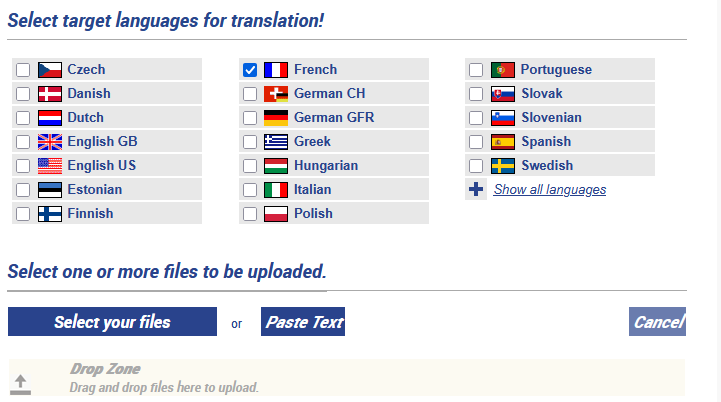
Figure 1: Selection of target languages
The list shows a set of predefined languages. If needed, users can choose from up to 150 languages. The initial suggestions are generated dynamically from recent usage statistics to streamline and speed up the ordering process.
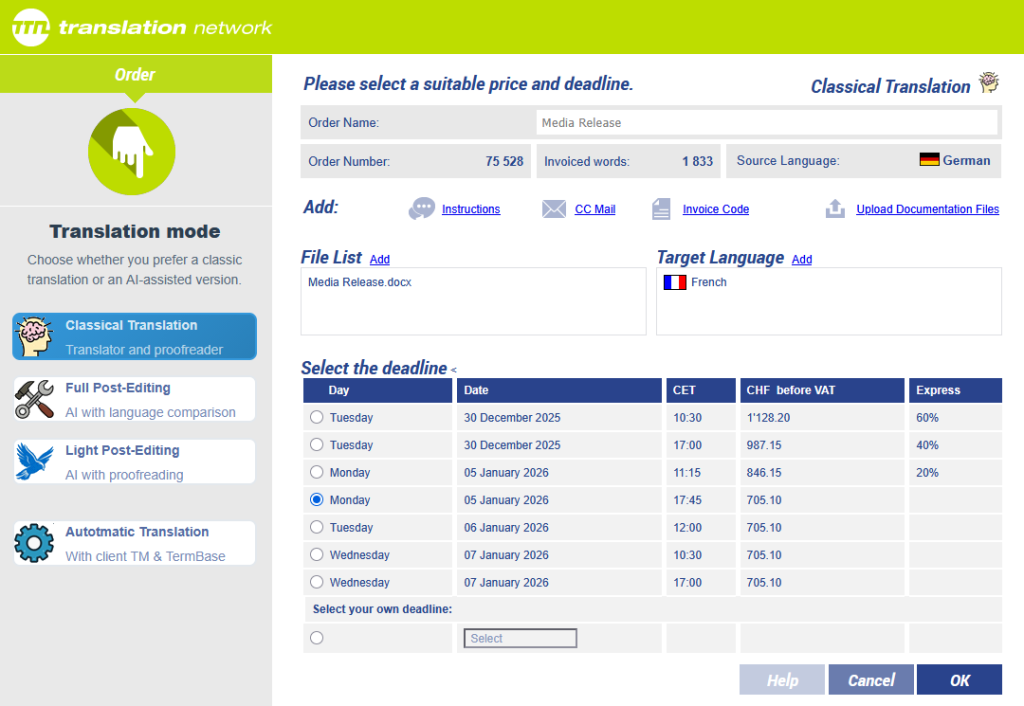
Figure 2: Translation mode and deadline selection
After an upload is completed, the system immediately proposes seven possible deadlines and displays them as selectable options. Experience shows that 90% of users accept one of the proposed deadlines and simply click “OK.” In addition to these seven suggestions, users may also choose a custom deadline from the pickup schedule. If a user selects a deadline that is not feasible, the system displays an appropriate warning.
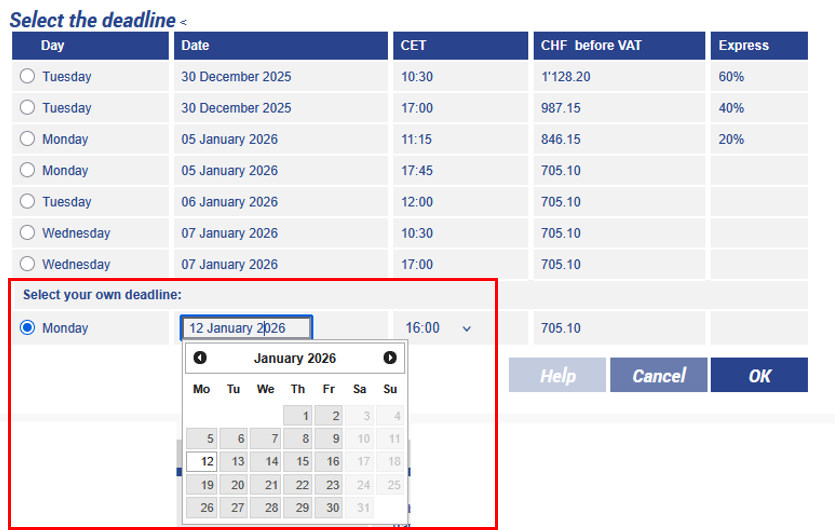
Figure 3: The client can select his own deadline
The order screen is entirely parameterizable. Prices can be replaced by points, the express charge can be suppressed, and the translation modes can be reduced or expanded. The parameterization takes place through the registry or the system operator interface.

Figure 4: Parameterisation through registry or System Operator Interface
The deadlines are calculated according to the availability of the translation resources. They can be parameterized for each user or user group individually.
Translation Mode and Workflows Schemas
The translation mode corresponds to different workflows with distinct pricing or effort models. In this example, four workflow options are presented. TTN-TSM is a modular system, allowing each workflow to be easily configured according to specific requirements.
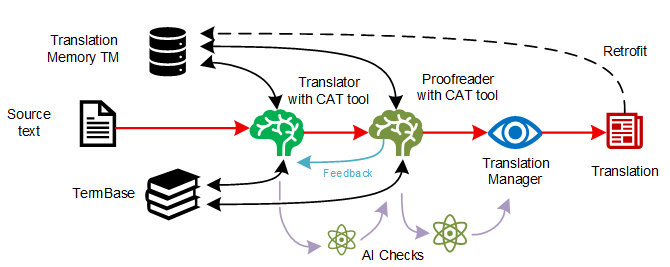
Figure 5: Classic translation
In the classic translation model, the text is translated by a human translator and then carefully corrected by a proofreader. The Translation Manager supervises the process, especially if there are several target languages, ensuring consistent formatting across all languages. They review the source files for any images. If necessary, they organize vector files so that they can be overwritten, or they place text boxes covering the pixel legend so that the translators can access them in segmented mode of the XLIFF editor.
Once the translators have uploaded their work, the files are automatically routed to the proofreader. The system generates advanced AI analyses and a comprehensive CATT Quality Assurance report, which are provided to support the proofreading process. After the proofreader submits the revised version, the content is sent to the latest version of ChatGPT for a final, in-depth quality assessment—ensuring maximum linguistic accuracy and consistency before delivery.
If the client changes the text after the translation, they can upload it or send it by mail. The file will then be retrofitted, and the latest modifications will be updated in the Translation Memory.
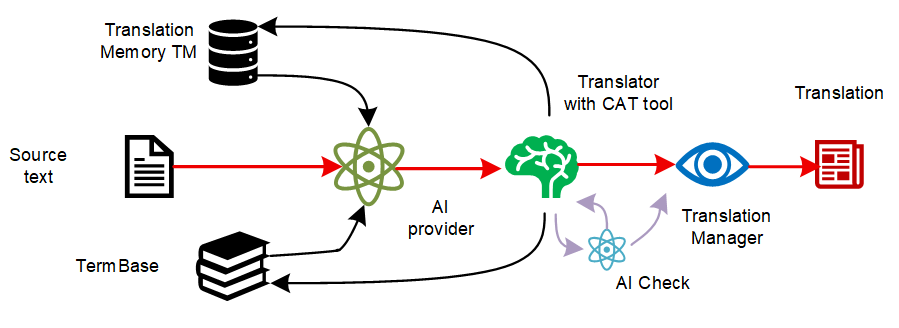
Figure 6: Full Post-Editing
In the full post-editing model, the text is first translated by an AI Provider. The exact procedure is explained later. The text is then carefully compared with the source text. If the system detects any pictures, references, or other unhandled elements, the Translation Manager will check the files and adapt them accordingly before sending the file to the client.
The Translation Manager also verifies that the translator can access the relevant resources from the Translation Memory and TermBase, ensuring that the linguistic work is carried out with the correct reference data. They coordinate the workflow so that the translator can perform the detailed comparison between source text, AI output, and the linguistic resources used during post-editing.
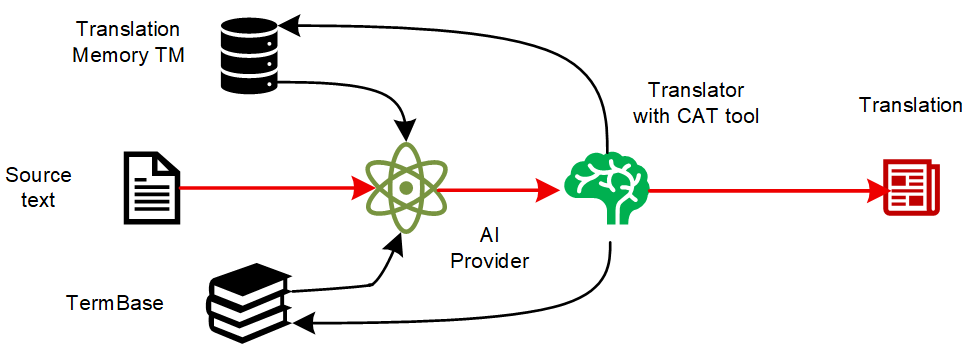
Figure 7: Light Post-Editing
Light post-editing works similarly to full post-editing. The post-editor focuses basically only on the target text and consults the source text only if there is an apparent problem in the machine-translated text. Unless the translator explicitly writes “Hold” in the window that appears when clicking on check in, the translation is forwarded automatically to the client. In this model, the post-editor relies primarily on the machine-translated output and does not systematically compare it with the source text.
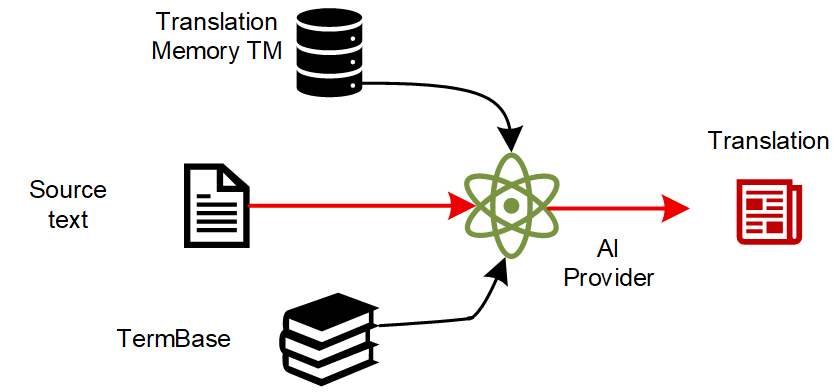
Figure 8: Automatic Translation
The Automatic Translation model is the simplest. It sends the text to ChatGPT, DeepL, or any other well-known LLM Provider and translates the text. The translation is always done using the Trados API. It synchronizes the terminology in the Termbase and prompts the Translation provider to implement fuzzy matches. Full matches are always translated in the same way without modifications.
Automatic Translation via TTN is particularly useful when the client or their organization has large translation memories and the terminology is well defined in the TermBase, since the terminology-aware processes take into consideration existing translations and approved terms. This allows the system to produce output that is more consistent with the client’s established language.
Translation Archives
TTN TMS clients are members of different user groups. One of the most important groups is the archive group. A member of an archive group can see and download the translations of other members within that group. Usually, an organisation has different archive groups. It is not suitable for texts from the HR department to be accessible to all other users. However, translations from the Press and Media Department can be seen and downloaded by all members.
TTN maintains a full-text archive for all source and target texts. Therefore, all files are converted to HTML files.
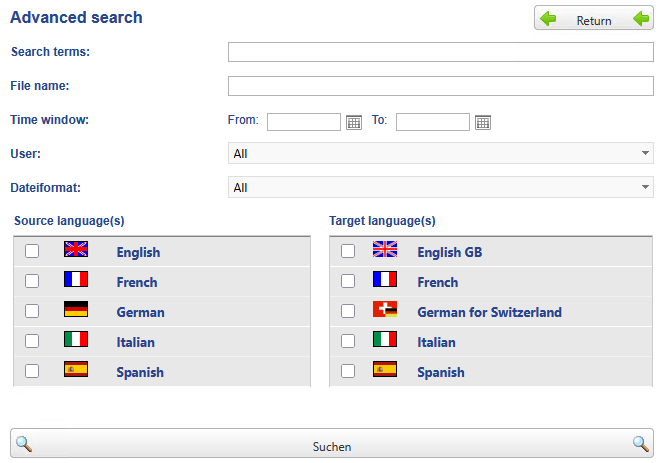
Figure 9: Full-text search in translation archive
The archive search allows sophisticated searching by search terms, languages, format, and other criteria.
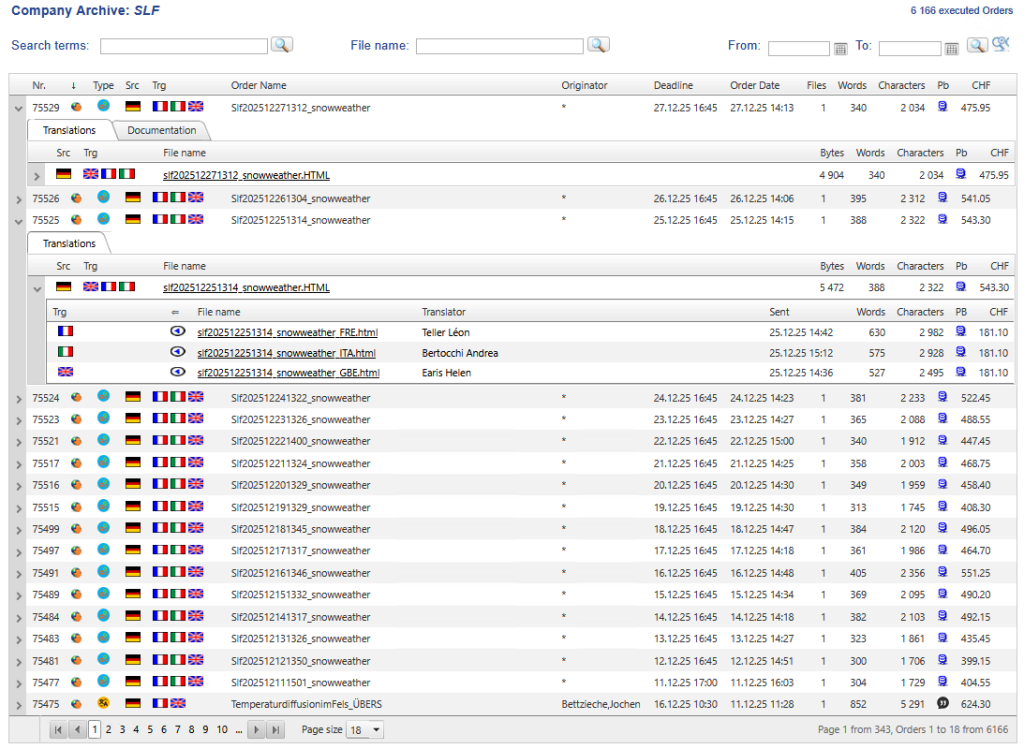
Figure 10: A three-level list provides fast and easy access to the desired search results
The archive presents results in a three-level list, facilitating quick access to completed or pending orders. All order information, including documentation files, instructions, or XLIFF files, can be found with a few clicks.
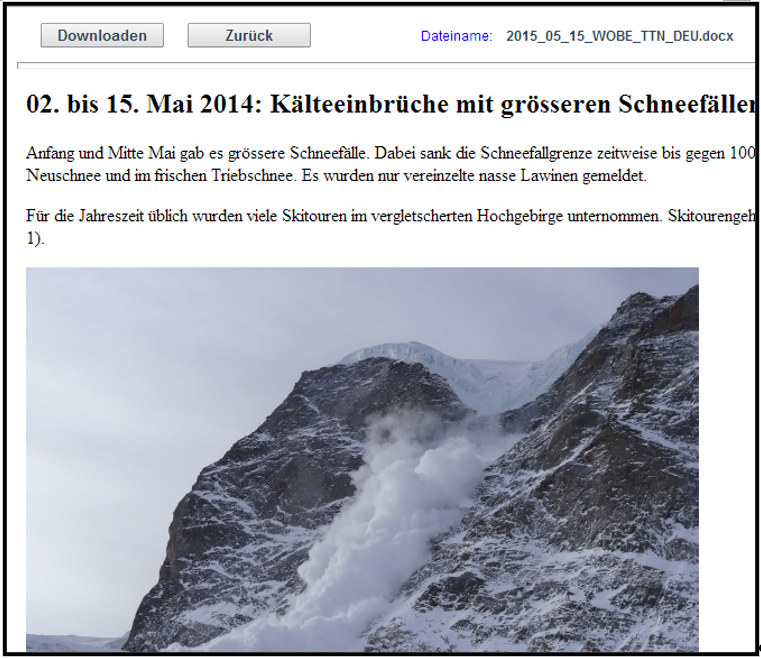
Figure 11: Translation archive with pictures in HTML in browser
Since all files are converted into HTML, the content can be displayed directly in the browser and downloaded. The integration of pictures, graphs, and schemas allows for quick orientation within the text.
Thanks to the conversion into HTML and full-text indexing, the user can search and access all current and executed translations very quickly.
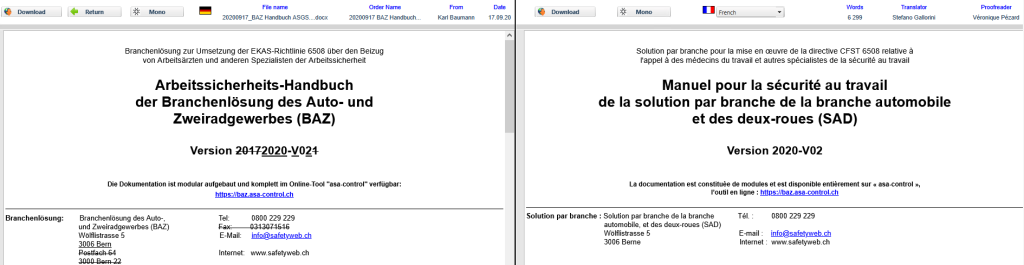
Figure 12: A side-by-side viewer allows analysis of target and source texts
The side-by-side archives allow translators as well as clients to locate and identify search strings and old translations very quickly.
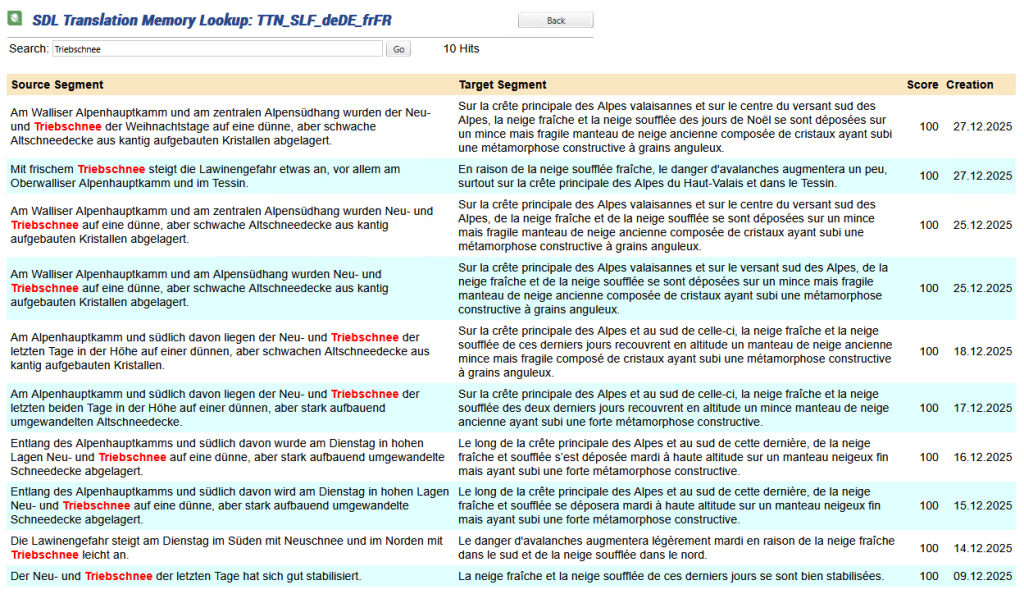
Figure 13: Users can access and search the TMs without third-party software
TTN TMS seamlessly integrates with the GroupShare server, providing authorized users with direct access to Translation Memory content. Depending on their permissions, users can download TM data in TMX format without needing to access GroupShare directly.
The same functionality applies to termbases: users can consult and retrieve termbase content either through TTN TMS or via the multilingual online interface, ensuring transparent and efficient access to all linguistic resources.
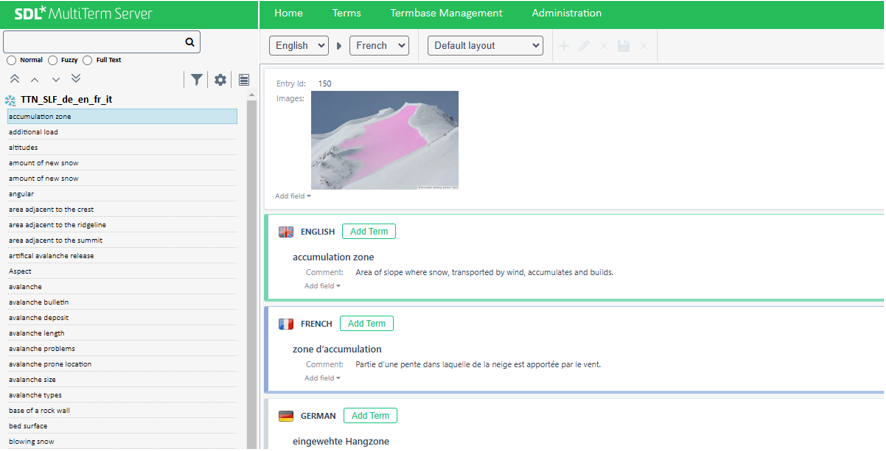
Figure 14: MultiTerm online database
The MultiTerm database and its entries are very important for automatic translations, as the terms are exported to DeepL and other providers. The client can add terms and search terms directly in their database. A link to the database is added in the delivery mail, allowing them to affect the next translation.
Direct access to TMs and TBs guarantees full transparency of the translation resources. The client can verify at any time whether they are properly maintained, resulting in greater confidence in the overall process.
Access to Translator Database
The client can – if configured – get a link to the translator database, where they can access the profile of the translators and proofreaders.
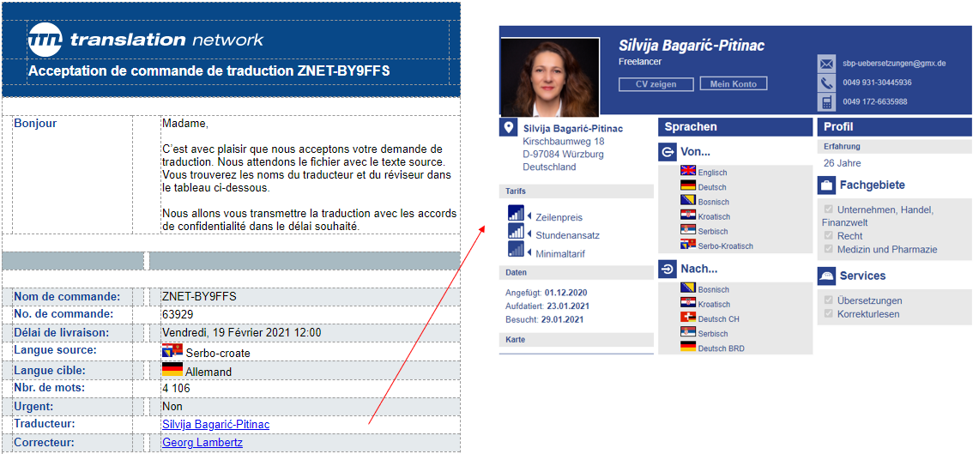
Figure 15: Access to translator and proofreader profile
The system can be parameterized to insert a link in each translation delivery report that goes to the translator Database, where the client can retrieve information about their translation team. This allows them to ensure that the translation team is qualified or, if authorized, restrict the team to their preferred translators.
Feedback Functions
TTN offers powerful feedback functions that allow clients to rate each translation. These ratings have a direct impact on the selection of the translation team.
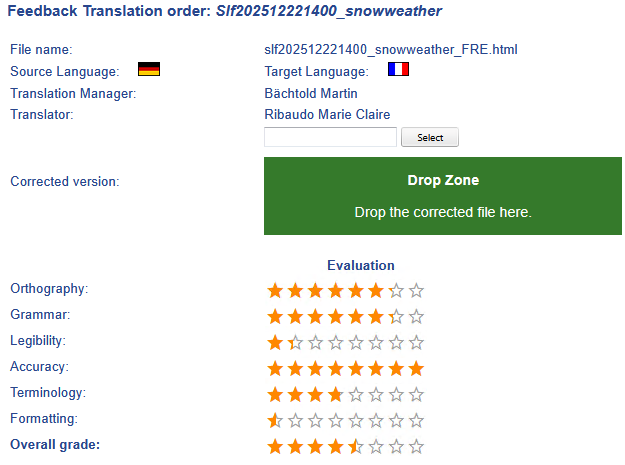
Figure 16: Client feedback function with evaluation
The client can upload a revised version. The old version will be replaced in the archive, and the translator and the proofreader receive a summary where all changes are listed by email. The new file is retrofitted into the Translation Memory – this procedure is explained later.
The feedback function allows the Translation Manager to know if the client is satisfied with the service. If there is unsatisfying feedback, they can change the translator or the whole team.
Statistics and Charts
The system offers statistics per language, turnover, and much more. The invoices – if applicable – can be edited and controlled online.
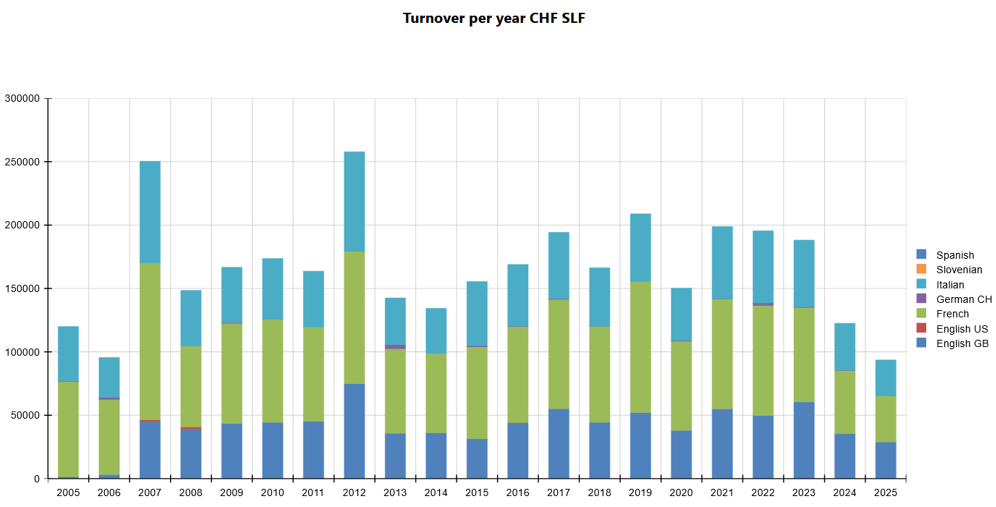
Figure 17: Graphics for turnover, language demand, words translated
A complex cost analysis system allows the organisation to determine if the team and the whole department are working efficiently.
Invoicing
There is no universally standardised invoicing system for translation services, which results in significant complexity. Translation agencies are required to submit tenders, while each organisation defines its own highly specific invoicing procedures within the technical specifications document. These requirements often include customised match rate bands for CAT tools, and invoicing preferences that may be based on source or target text, word count, line count (with or without spaces), and numerous other metrics.
TTN TSM, a translation management system developed over more than 30 years, accommodates all known invoicing variations.
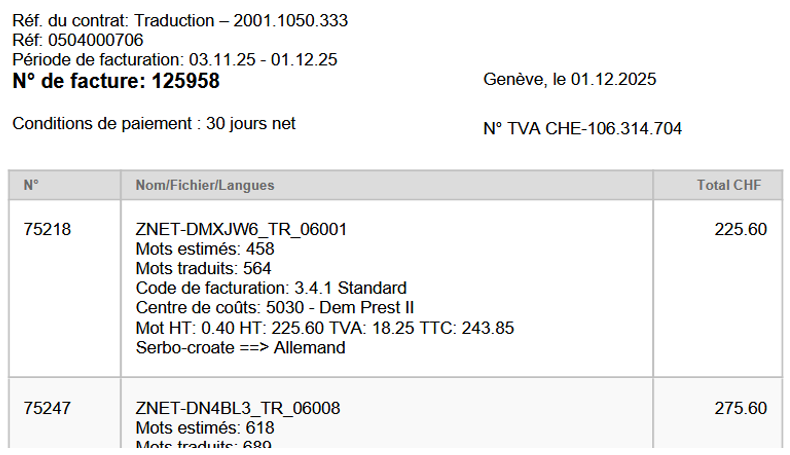
Figure 18: Extract of an invoice with client specific data
Invoices are sent as PDF documents via email. They are also accessible online, providing full transparency and enabling verification of word counts as well as confirmation of the accuracy and regulatory compliance of the invoiced amounts. Invoices are generated in country‑specific formats; in Switzerland, for example, a QR code is required in accordance with local invoicing standards.