
 Deutsch
 Français
 English
Documentation and Training
TTN TMS provides concise, specific user guides that show translators how to use GroupShare, Trados, MultiTerm, and AI post-editing within the TTN interface. Translators receive focused onboarding to the TTN workflow, with a basic familiarity with CAT tools assumed. Order handling is intentionally minimal: the translator opens the assignment via a link, checks out the file, completes the work, and checks it back in. Translators can also use the Trados package, which is sent by email. Administrative steps are reduced to a few clicks, enabling them to focus on quality and timely delivery.
Familiarity with the functioning of a CATT system is required. External contributors without CATT experience can work with review files instead; however, translators who lack CATT knowledge should not be assigned orders for quality reasons. Most translators are familiar with Trados-style CATT systems, which held a 74% market share in 2013.
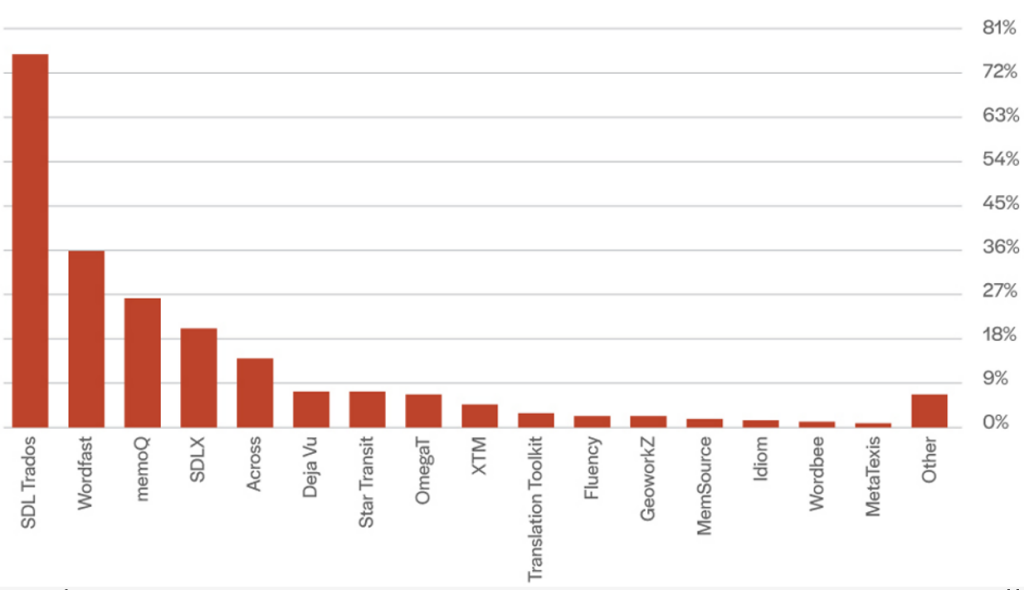
Figure 1: Most translators are familiar with the Trados system
According to recently published articles, Trados now has over 80% market share, as smaller CATT systems are unable to keep pace with the rapidly evolving AI connectors.
Order Assignment
Upon receipt of an order, the translator may select their preferred notification channel – WhatsApp, SMS, email, or the confirmation webpage. A dedicated, mobile-optimised interface provides real-time assignment alerts and status updates, enabling translators to stay informed and respond promptly from anywhere, at any time.
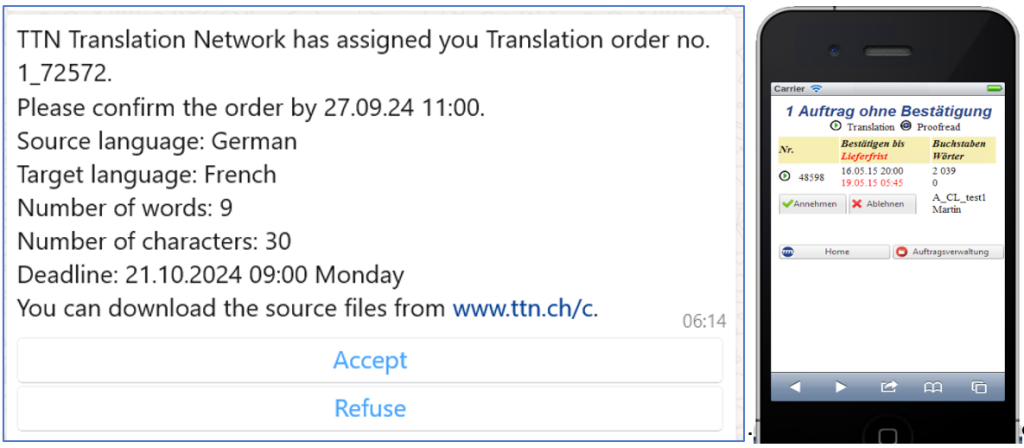
Figure 2: WhatsApp message or mobile phone interface to accept or refuse orders
The order files and order forms are usually transferred by mail if there are no specific security restrictions.
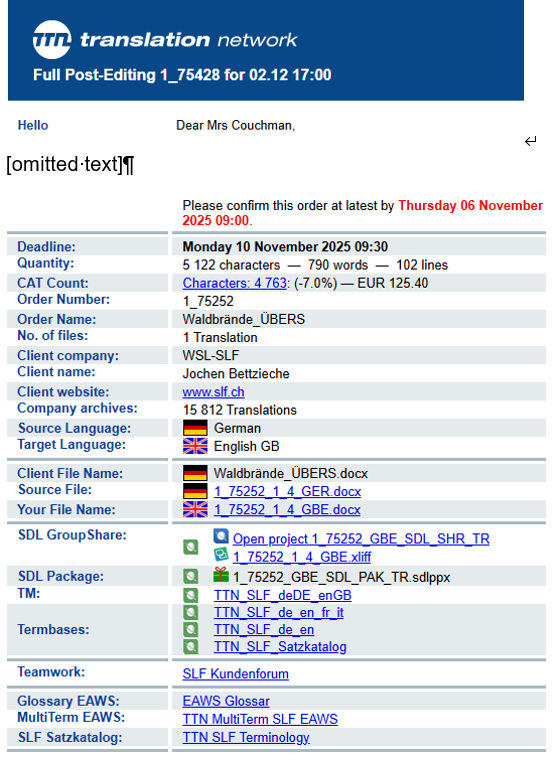
Figure 3: Mail with order information
When a translation project is assigned, the system sends out a notification email. Depending on the configuration settings, this email may provide access to the source files in any of the following ways:
- Attached Files: The native source files are attached directly to the email.
- Download Link: The email includes a hyperlink from which the native files can be downloaded.
- Online Editor Link: A link is provided to open the project in the Trados GroupShare Online Editor for web-based translation.
- Trados Studio Link: A special link is included that opens the XLIFF file directly in the desktop Trados Studio application.
In addition to file access, the notification email contains important details about the translation project. It typically includes information such as:
- Order Details: The identity of the requester or client who placed the order (the orderer).
- Terminology Bases: References to relevant MultiTerm termbases.
- Translation Memories: References to the applicable translation memories (TMs) for leveraging existing translations.
For any client-specific, department-specific, or field-specific guidelines, translators should consult the client forum.
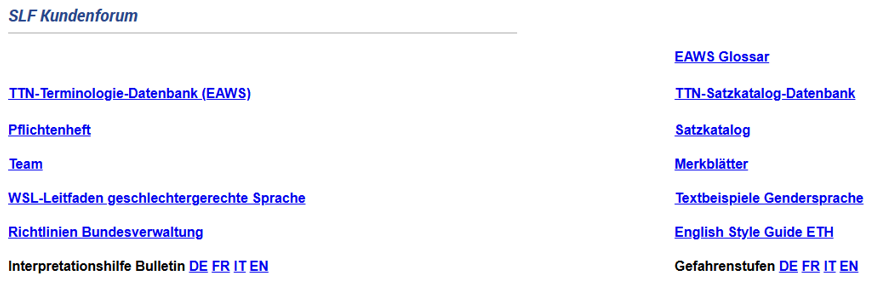
Figure 4: Client, department or field specific forum
A centralised forum tailored to each client, department, or specific task offers direct access to detailed reference materials and guidance. This forum serves as a single source of truth by consolidating all relevant reference documents in one place. These include client-specific guidelines and style guides (covering rules such as gender-inclusive language usage) and links to external terminology databases, along with any other project-specific preferences or resources. By collecting such information centrally, the forum ensures that new translators can swiftly find the guidance they need – facilitating faster onboarding and enabling them to produce consistent, high-quality translations that adhere to the buyer’s preferred terminology and style. This approach also fosters effective knowledge sharing and ensures guidance is tailored to each client’s needs, while reducing administrative overhead by minimising repetitive inquiries and the manual distribution of materials.
Order Execution
Most translators have a permanent link to the Translation Management dashboard, where they handle the orders.
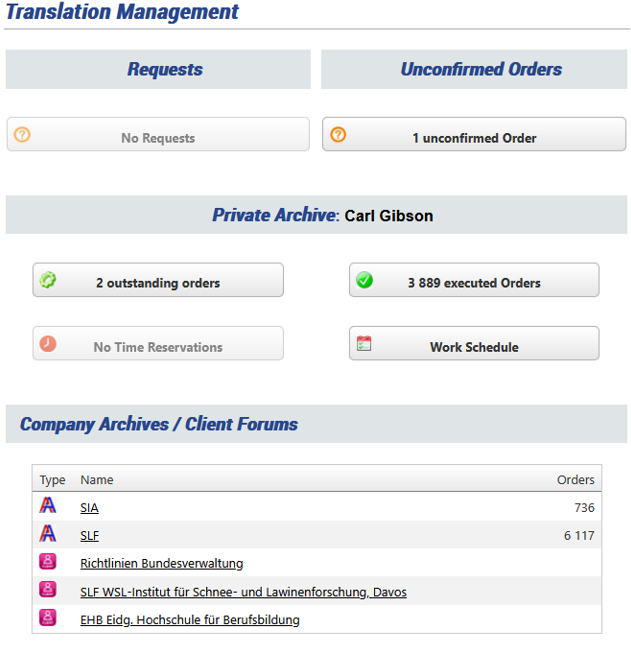
Figure 5: Translator dashboard with overview
The translator is provided with a personal dashboard displaying a comprehensive overview of all assigned orders. They can access the translation archives in the same manner as described in the client section. In addition, the dashboard provides direct access to the relevant client forums for each active assignment, offering quick and structured access to all job-related information, including guidelines, preferences, and reference materials essential for ensuring accuracy and consistency.
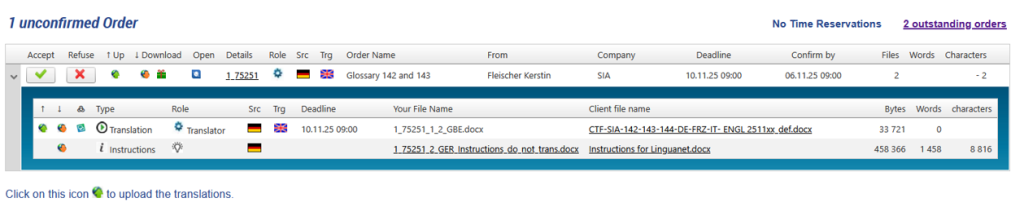
Figure 6: List with unconfirmed orders
The translators and proofreaders can access the order data through multi-level listings and open the files either by downloading them or by viewing the HTML version in the browser.

Figure 7: List with outstanding orders
When a translator wants to begin work on an order, they generally have three options. The most common method is to click the GroupShare link, which opens the project in the Trados desktop application. The translator then checks out the project files and begins working on the translation in their local environment.
Another approach, used by a smaller group of translators, is to work with a translation package. A package contains a subset of the main Translation Memory (TM) for the project and is configured so that the Trados application still connects to the centralized TM and terminology servers. This method can be more powerful because the concordance search covers the entire server TM with all available segments, providing more context and reuse possibilities.
The third option is to use the GroupShare Online Editor. In this case, the translator clicks on the link to the online editor, which opens the project in a web-based interface. The translation is done directly in the browser, and the translator does not need to purchase a CAT tool license because access is provided via the TTN network.
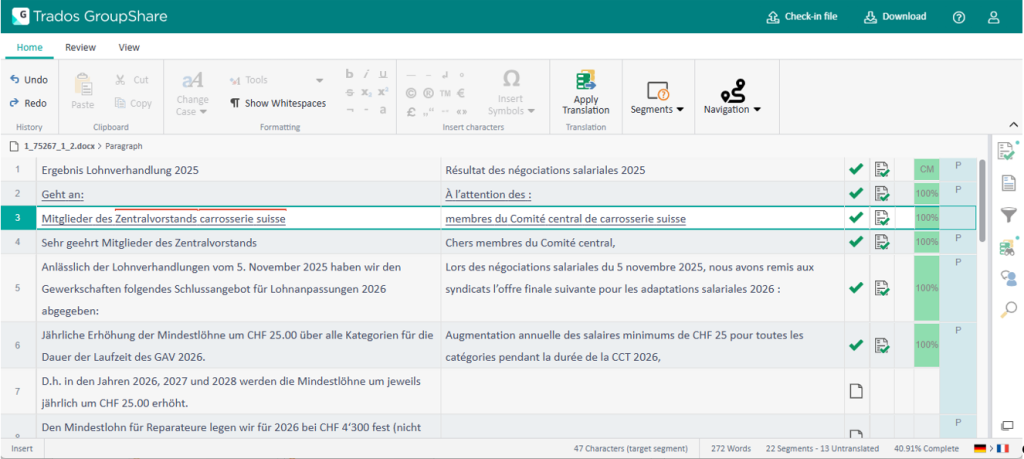
Figure 8: The GroupShare editor opens directly from the TTN TMS in one click
The terms stored in the terminology database are highlighted in red, and a dedicated window displays fuzzy matches from the TM server. To add a new term to the terminology database, the term pair must be activated in both the source and target windows and can then be added to the central database with a single click.
Projects are configured so that they cannot be completed without the mandatory quality assurance (QA) check. During QA, numerical data and overall consistency are verified, including whether the terminology used is consistent with the MultiTerm database. After QA approval, the file is checked in or uploaded to the server. Users can also leave segment‑specific or general comments, which are stored in the XLIFF file, extracted by TTN SDL, and made visible to the Translation Manager.
For quality control, order execution time calculation, and performance ranking, it is important that the proofreaders record the time. The system sums up the time used by the proofreader, and they get a rate for revision time per line or per word.
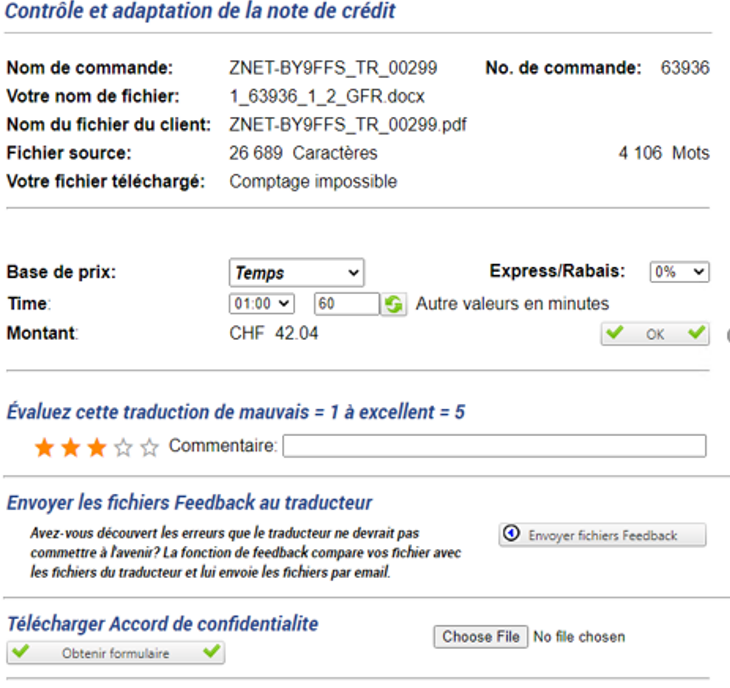
Figure 9: Time recording and quality assessment
The proofreader can enter the time used to check the translation. They can also rate the translation. These values can be used by the AI module that assigns translation orders, as we will see later.
Order Details
Translators and proofreaders have access to a consolidated overview of all order details. From there, they can communicate with translators for other languages, monitor progress, and access instructions, documentation, translation memories (TMs), termbases, PDF files, machine translations, AI‑based quality checks, client instructions, and other project resources.
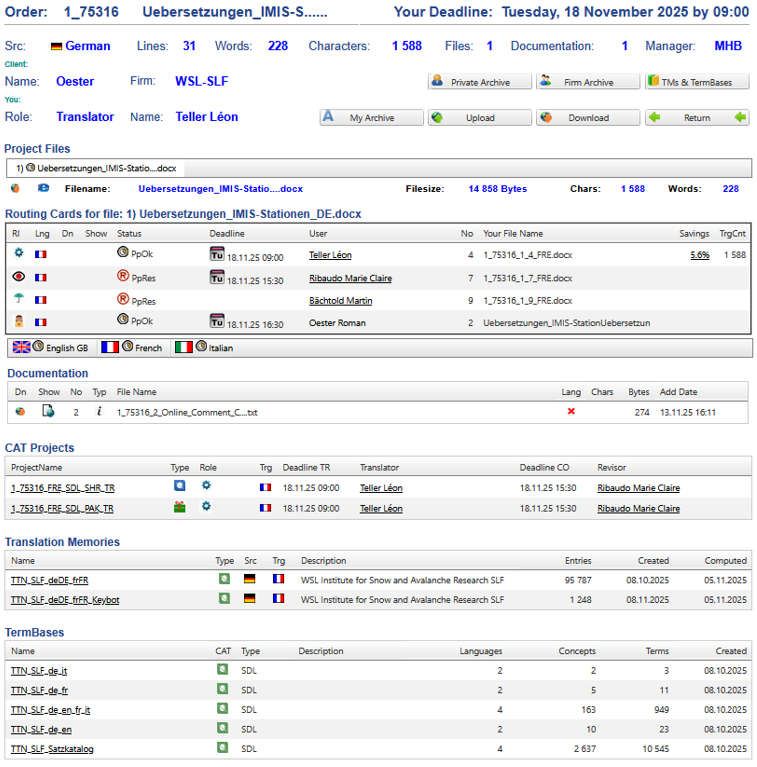
Figure 10: Order details
The information contained in the order details is linked to the translation archives and to the credit-note system, ensuring that all project data, past work, and financial records remain connected and traceable.
Credit Notes
The system supports flexible payment models for translators and proofreaders. Pricing can be set per line or per word in either the source or target language, based on time, or according to task type such as light post-editing or proofreading, with or without a minimum charge. For translators, the most commonly used model is CATT-Count, which takes into account the number of full and partial matches. A monthly report ensures full transparency. Translators can open the CATT-Count details, view the source and target text, and, if they have the necessary permissions, adjust the invoice mode.
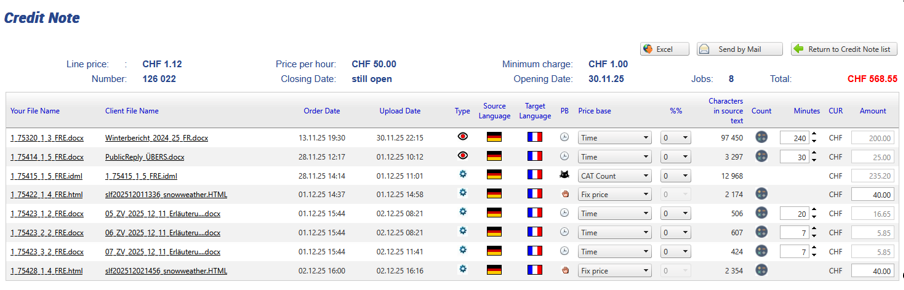
Figure 11: Extract from a monthly Credit Note
Credit notes are generated automatically and closed at the end of each month. They include a detailed statement of all completed orders and are sent to translators by email. They are also exported to the professional bookkeeping system, which transfers the payment to the corresponding bank account.
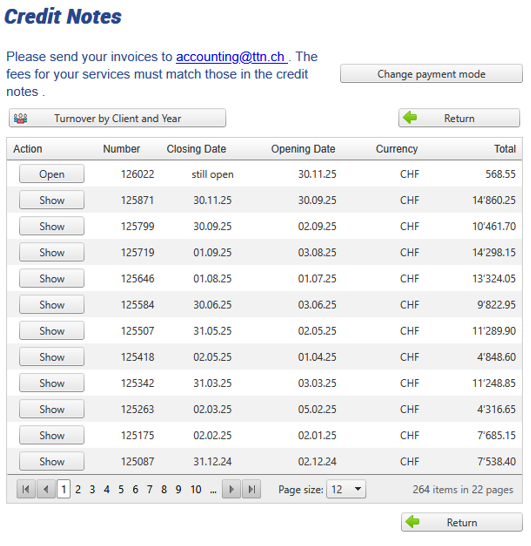
Figure 12: Credit note overview with annual performance
The system provides an overview of annual earnings and generates analytical data, including turnover by client.
Workload and Presence Schedules
The system keeps track of all orders and calculates the workload. If the workload is too heavy, the Translation Manager gets a warning, and the system will not automatically forward new orders if the translator does not have enough free capacity.
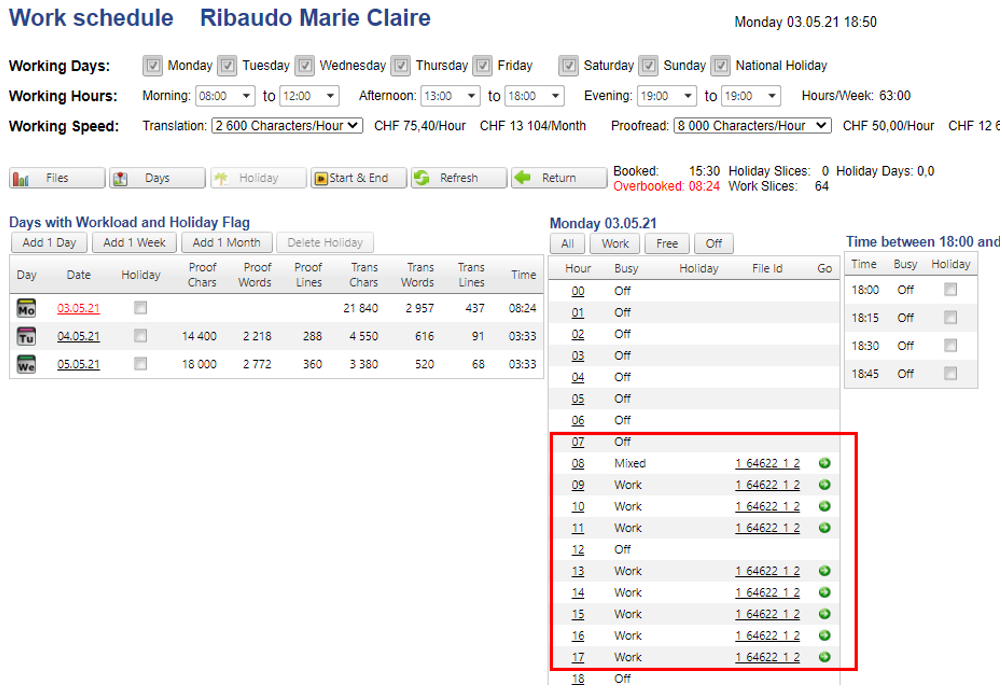
Figure 13: Workload calculation for translators and proofreaders
The work schedule calculates translators’ workloads in 15-minute increments, providing a clear and precise overview of project planning and time allocation. Translators may also enter planned absences or periods of unavailability (such as holidays), and the system automatically takes these into account when assigning jobs and scheduling tasks. This detailed approach supports accurate resource planning and contributes to quality assurance, thereby ensuring timely project delivery.
The translator, and also the client, can define their user settings in a wide variety of ways.
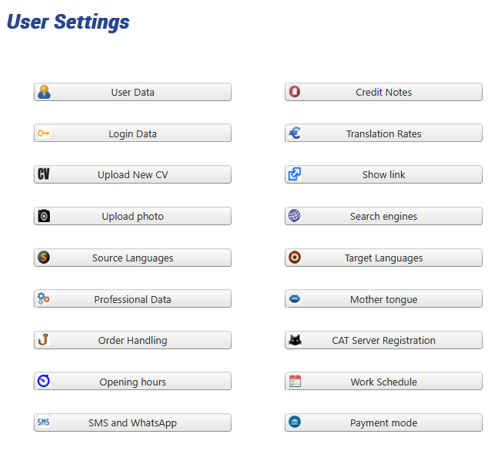
Figure 14: The user can define the working hours and a whole range of parameters
The different translator and user parameters and the rights to modify them have to be agreed upon with the buyer. The system allows a wide variety of options.
Resource Planning Calendar
Some clients, such as the meteorological services, police departments, or stock information services, require the presence of dedicated translator teams even on weekends and during Christmas holidays. Proper forward planning is therefore essential. TTN TMS provides tools to create and manage these schedules.
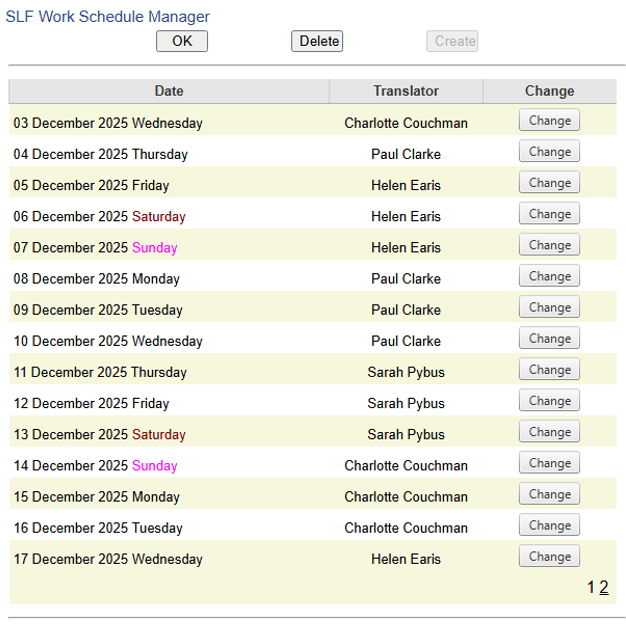
Figure 15: Resource planning calendar for automatic job assignment
The on-duty translator is notified each evening via WhatsApp or SMS that they have an assignment the following day. This ensures that no one misses their shift and that the Translation Manager does not forget to inform the on-duty translation team.